Getting Started
Last updated: June 30, 2025
👋 Welcome to ItsWare!
Our mission is to make the tracking of the who, what, where and when of your stuff as frictionless as possible. Use the tutorial below to get started and reach out with any questions!
Accept your account Invitation
Check your inbox for an email with the subject, "You have been invited" from support@itsware.com and setup your password.
Download the Mobile App
Although all of ItsWare can be accessed via the Website, we recommend downloading the official ItsWare app:
Install your ItsWare Wallet Pass and View Access Code
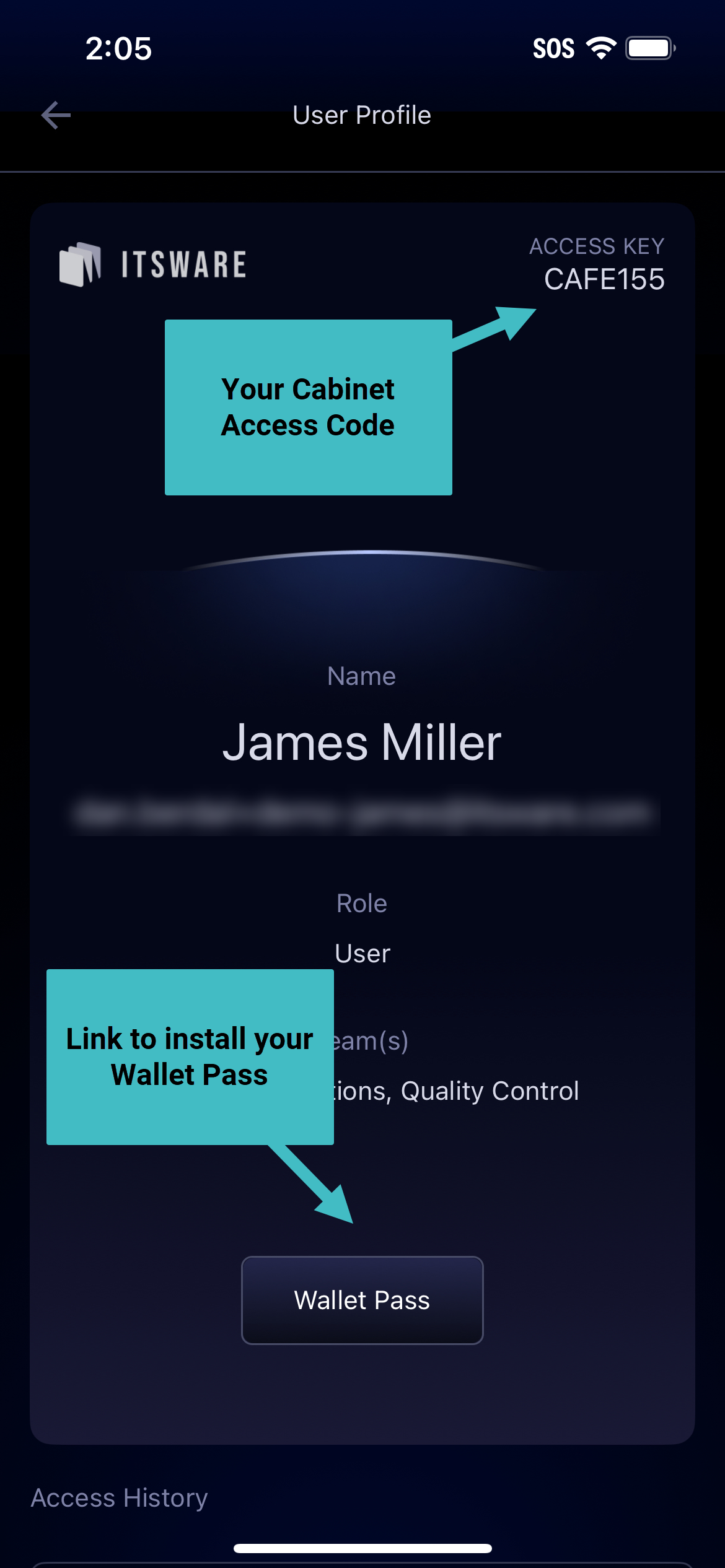
The ItsWare wallet pass allows you to use your Android or iPhone's Wallet to unlock the cabinet with a simple tap.
Ensure you have the official Wallet app for Android or iOS (typically it's pre-installed)
Through the mobile app, or your phones web browser open the main hamburger menu
Choose "User Profile"
Tap "Wallet Pass", and follow confirmations to install the wallet pass for your device
Unlock your device and tap it to the Cabinet
Prefer to use an access code instead of the wallet pass? Find your code.
Begin using the Cabinet
Using the wallet pass or your access code, unlock the cabinet door
Take your stuff
Close the door
You are now listed as the Assets "Owner". You and others who have access to the cabinet can view who has an Asset and its history
View Assets and their history
Assets are items with attached ItsWare tags
There are four ways to locate items and view history within ItsWare:
Cabinet Inventory: Available within the web and mobile apps, as well as on the Cabinet's main screen. This view allows you to see what's checked-in or checked-out for a specific cabinet and who has it
Asset Profiles: Asset Profiles group similar assets together. Select Asset Profiles from the main menu on the web or mobile apps, then search and open a profile to see all similar items and their status
Assets: On the web or mobile app select Assets from the main menu. Search by name and quickly see an assets status. Open an asset to view its activity and who currently owns it.
Have an idea, question or feedback, we'd love to hear it! Drop us a Note.