User Management
Last updated: April 17, 2025
Understanding User Roles
Add a User
You must be have the Administrator role in order to Add new Users
Web
Navigate to the Users Page
Click "Add New"
Fill in user information
Select Role and Team(s)
Save the page
The user will receive an email inviting them to access their account on ItsWare.
To assign a user as a Team Moderator, Choose the "User" role, save the user, then assign them as a Moderator on the Team Management page
Mobile
Under the main Hamburger Menu choose "User Management"
Under the three dots menu choose "Add New User"
Fill in user information
Select Role and Team
Save the page
The user will receive an email inviting them to access their account on ItsWare.
To assign a user as a Team Moderator, Choose the "User" role, save the user, then assign them as a Moderator on the Team Management page via the website.
Change a Users Role
You must be have the Administrator role to change other users' roles
Learn more about roles and capabilities 📄 User Roles
Web
Login and choose the Users tab
Select a user to edit
From the role drop down choose from the available roles (User and Administrator)
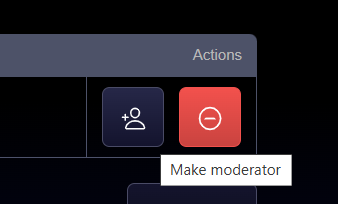
Under the team section, Users with the "User" role can be assigned as a team Moderator by clicking the Icon to the right of the team name
Save the Page
Mobile
Currently Team moderators can only be set using the website
From the main menu choose User Management
Select a user to edit
Use the role drop down to choose between available roles
Confirm your selection
Disable a User
You must have the Administrator role to disable a user
Disabling a user will disable their access to Cabinets and their ItsWare login
Web
Navigate to the Users Page
Search for a User and click to edit
Find the "User Status" drop down
Change the status to "Disabled"
Save the page
Mobile
Under the main Hamburger Menu choose "User Management"
Find a user and tap their name to edit
Change the "Active" toggle and Save the page
Remove a user from a Team
Admins and Moderators can perform this action under the Team Management area📄 Team Management
Set a user as a Team Moderator
Admins and Moderators can perform this action under the Team Management area